Understanding ValeTheVioletMote's Character Creator

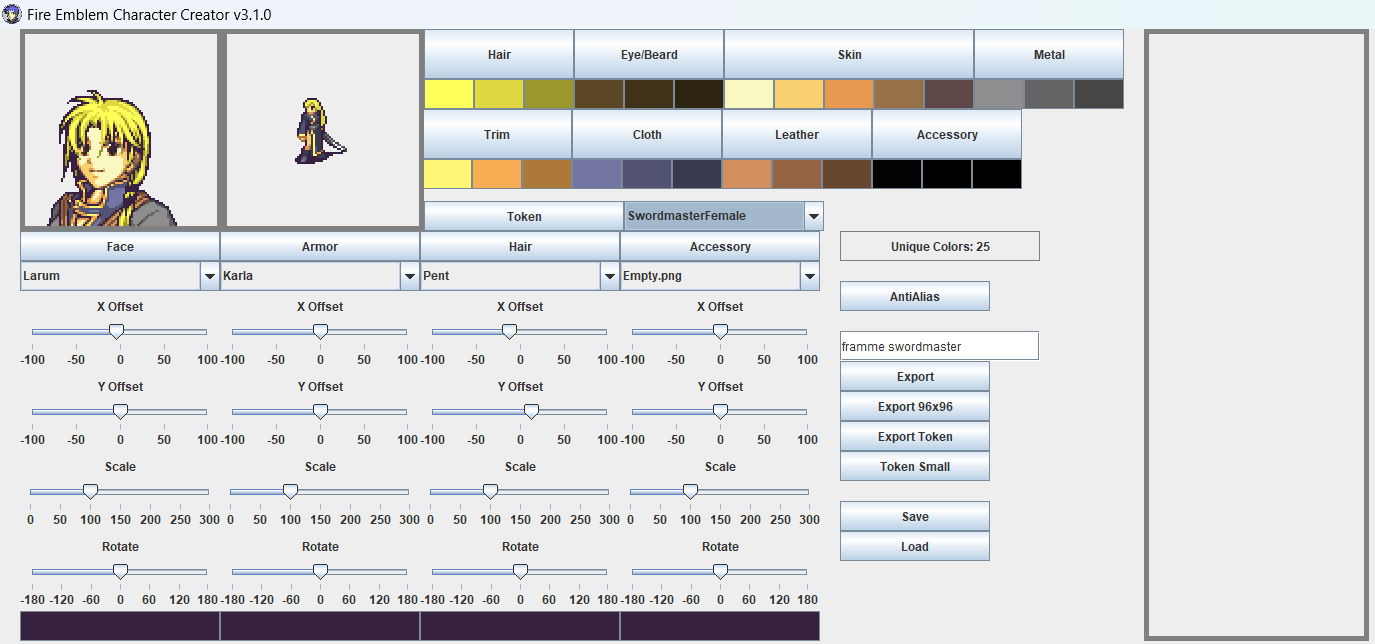
Hello everyone. I’m trying to learn how to make portraits, starting with ValeTheVioletMote’s Character Creator. However, I am having trouble understanding it, and how to import the portraits seamlessly into FEBuilder (The colors get messed up usually). Why are there two export buttons and what’s the difference? As far as I know, they just export the portrait into two different image sizes, but both are too big initially to use in FEBuilder. If I try reducing the portrait’s size in MSPaint, the portrait scrunches up. Additionally, what do I need to do to make mini portraits and talking/blinking frames?

I’d really appreciate answers to these questions and an easy step-by-step tutorial using the tools here. I’m familiar with Usenti and MSPaint, if that helps. Thanks.

3 Likes

Hi there! I’ve been using the Character Creator for a while to make splices less painfully and I’m fairly confident I can explain how the program works.

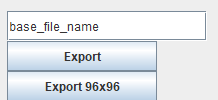
So first off, the difference between the two Export buttons.
image
The first export is a simple export, exporting at 192x192 for general use, such as profile pictures, placeholder assets, or a custom token for something like Roll20.

Export 96x96 does what it says on the tin, it exports your portraits to a 96x96 canvas size. This is the button you want to press if you plan on using it in an actual portrait. You can’t import the 96x96 image into FEBuilder by itself however, you’ll want to put it into the portrait format.
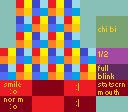
0Standard hackbox You can use this image as an overlay for where everything needs to go. (Blinking Frames, Mouth Frames, and Minimugs aren’t handled by the program but I’ll explain those later.)

Your second problem is the 16 (technically 15) color limit. Portraits can only have 16 colors, with one of them being the transparent color.
image
You’ll want to work this number as close to or exactly 15 colors. Try to keep a simple color palette and don’t be afraid to re-use colors if it means you can fit it in the 15 color limit. A common hack that I’m aware of is re-using skin tones for yellow trims. You can also twiddle with the portrait itself in usenti to reduce colors manually.

Blinking Frames and Mouth Frames aren’t covered by the program, so what I usually do is rip the frames from the vanilla portraits, recolor them to match the colors I use, and adjust the positions so it lines up right in-game. And since I already have the vanilla portraits with me, I can also splice together a minimug and recolor it.

I don’t really know too much about the free programs, but the way I do it (layering them all on top of each other and surgically removing the pieces I don’t need with a 1 pixel brush), I really suggest you try something that supports layers. You’ll need to do your own research on which program you want to use for that.

Hope this helps! If you have anymore questions feel free to ask!

3 Likes

I have a video that can help you use the Character Creator for portraits.

1 Like

Hey! Thanks a ton for the advice. The portrait format overlay and the explanations on the color limit really helped. I’m going to write my step-by-step process for my own self-reference and in case anyone else stumbles here. You can critique/optimize steps if you’d like:

Step 1: Create a portrait in the Character Creator.

Step 2: Reduce the unique colors down to 15/16 using the color selectors.

Step 3: Export the portrait as a 96x96 image.

Step 4: Open two MSPaint tabs, one for the portrait and the other for the portrait format overlay.

Step 5: Select All on the portrait and copy it onto the overlay. Fit it into the portrait box.

Step 6: For mini portraits, take a 64x64 of the portrait that (ideally) includes their hair, face and upper chest. Reduce that image by 50% for 32x32, and fit it into the mini portrait box.

Step 7: For talking frames, take a 32x16 of the portrait’s mouth and upper neck (Use vanilla portraits as a reference). Make sure the initial coordinates are divisible by 8, so the talking frames fit properly into FEBuilder. Fit them into the talking frame boxes below the portrait.

Step 8: For blinking frames, take a 32x16 of the portrait’s eyes. Follow the same coordinate rule above. Fix them into the blinking frame boxes beside the portrait.

Step 9: Manually edit the talking/blinking frames in Usenti using the portrait’s base features as a reference (If you used Larum’s face in the Character Creator, use Larum’s talking frames)

*Experimenting with giving the base portrait’s colors to the Character Creator portrait, so you can copy and paste the talking frames in MSPaint without breaking the color limit.
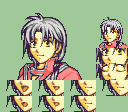
Framme Swordmaster

This is what I got after two days, and it seems to work fine in FEBuilder. Any thoughts on the procedure or the final product? Thanks again for the help!
1 Like

Would like to note one extra thing.

You’re going to be missing some shading on the face due to how the character creator works, usually where the hair is. It takes like a few minutes to fix up in usenti at most but it’s something to note.

Like I said, I’m not really sure how to work MS Paint for portrait purposes, but you seem to have gotten a good feel for how it works now, glad I could be of help!

1 Like

I would recommend looking at vanilla colors to make it look more natural. The hair is too bright imo

1 Like