How do I change a class’s map sprites?
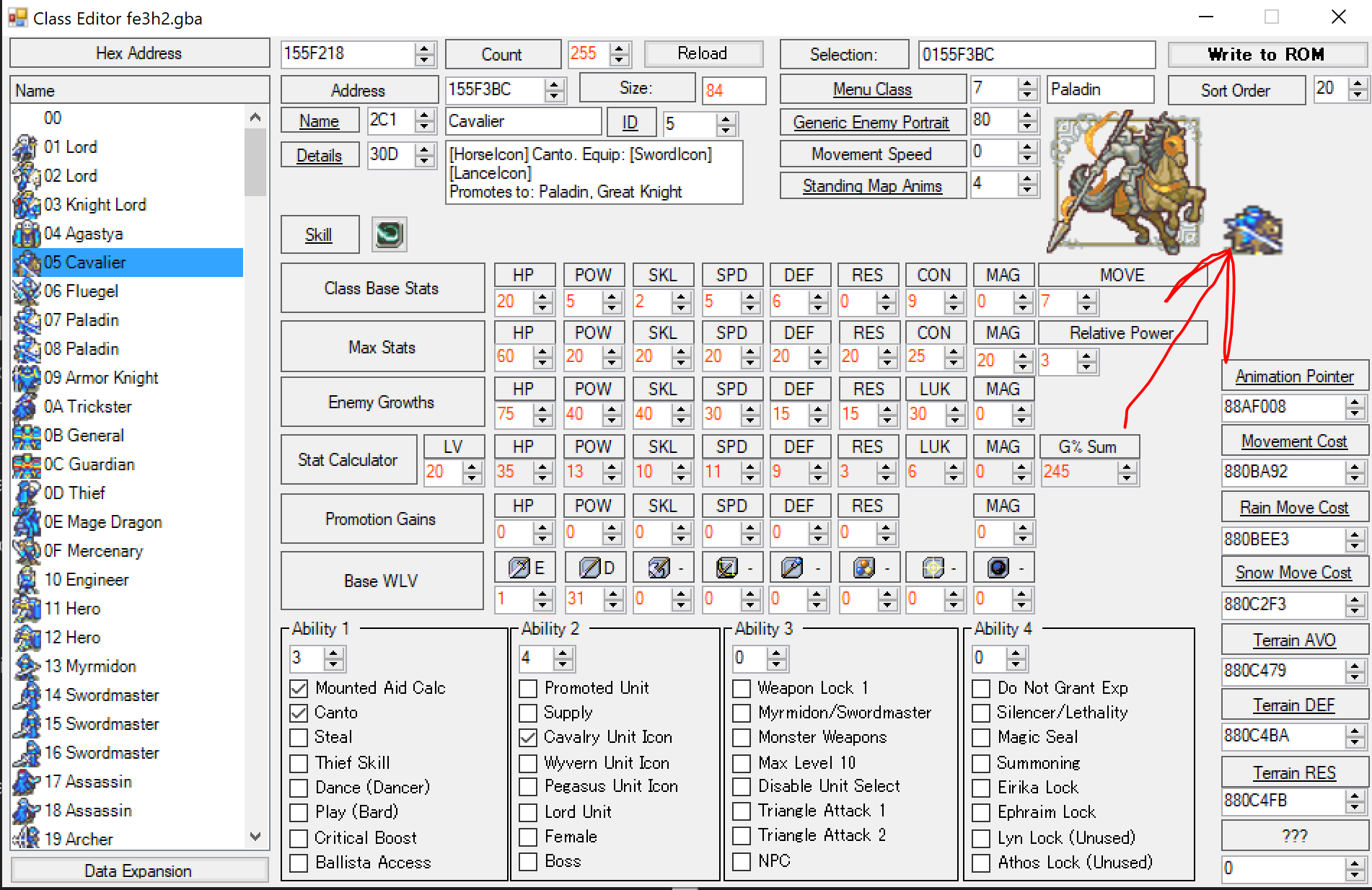
In the Class Editor, click on the map sprite of the class to get to the standing map sprites editor.
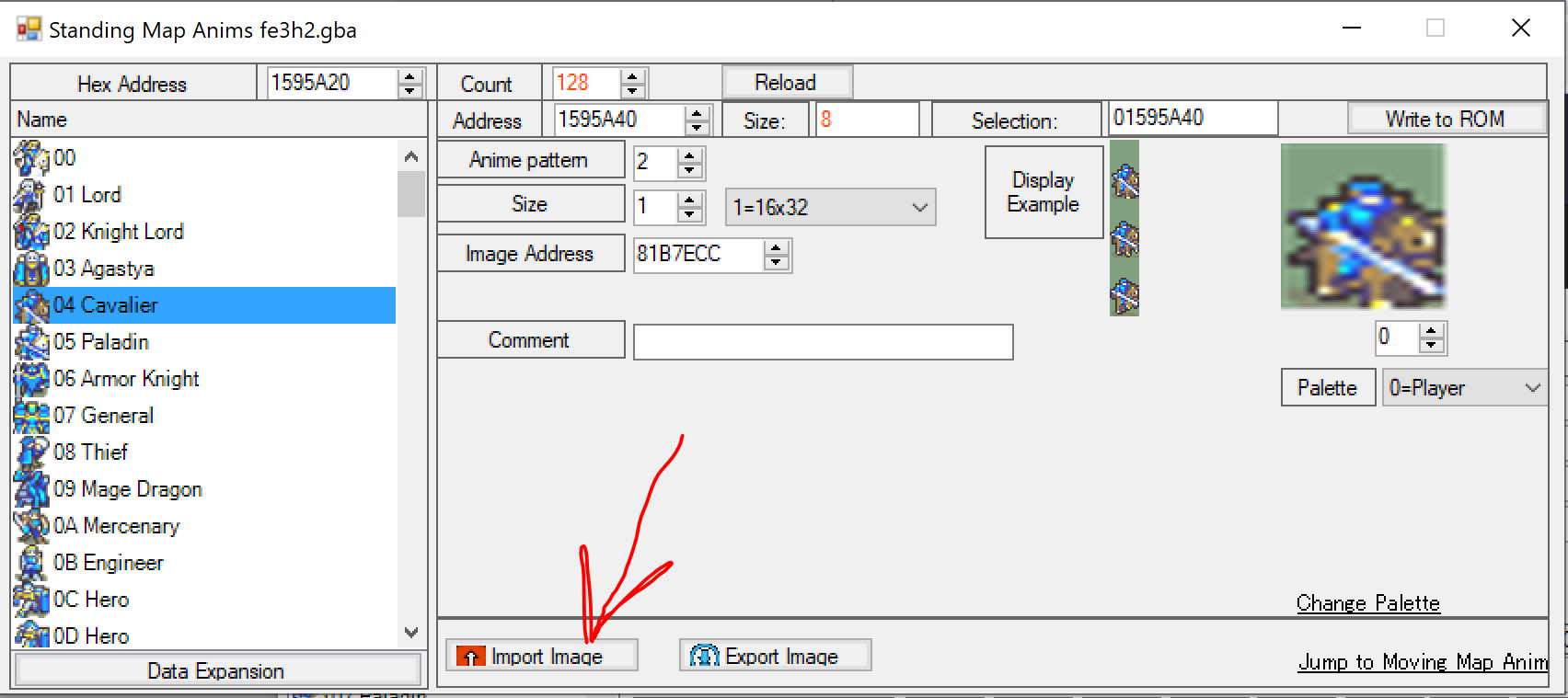
Here, you can import new standing map sprites.
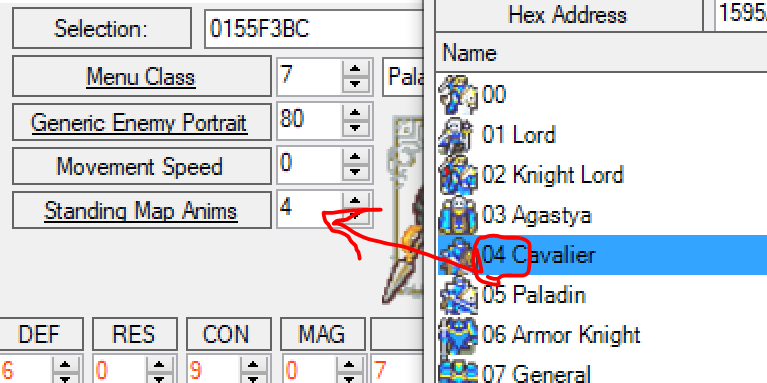
To select a different standing sprite in the list to use, you can double-click on an entry in the standing sprites list after opening the standing sprites editor from that class’s class editor, or you can set the ID of the standing sprite to use in the Class Editor (the ID is the position in the standing sprites list).
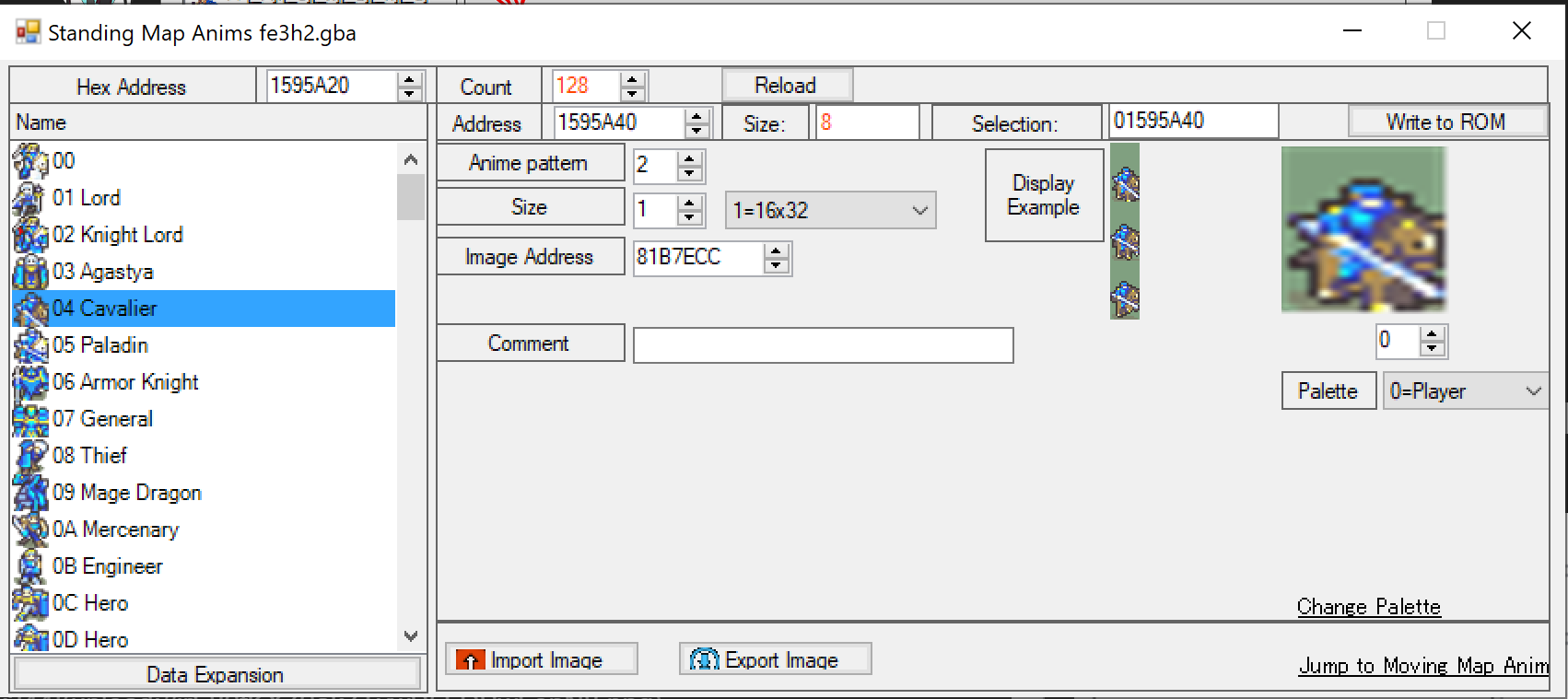
Now, we’re not done. There’s also the moving sprite. In the standing sprites editor, click “jump to moving map anims” in the bottom-right:
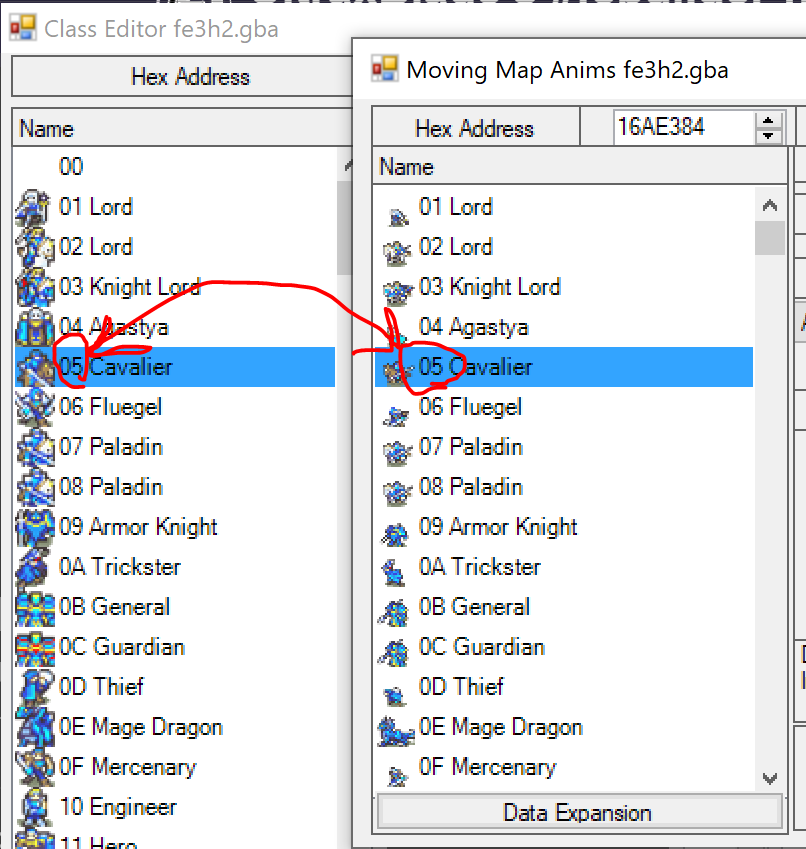
Much like in the standing sprites editor, you can import new moving sprites here. However, unlike standing sprites, moving sprites are not assigned by ID, and in fact, jumping to this editor may have taken you to the wrong one! Classes use the moving sprite that has the same position in the moving sprites list as the class has in the classes list. If the standing sprite you’re using is shared by multiple classes, jumping to the moving sprites editor from it will just have taken you to the first class that uses that standing sprite, not necessarily the one you came from.
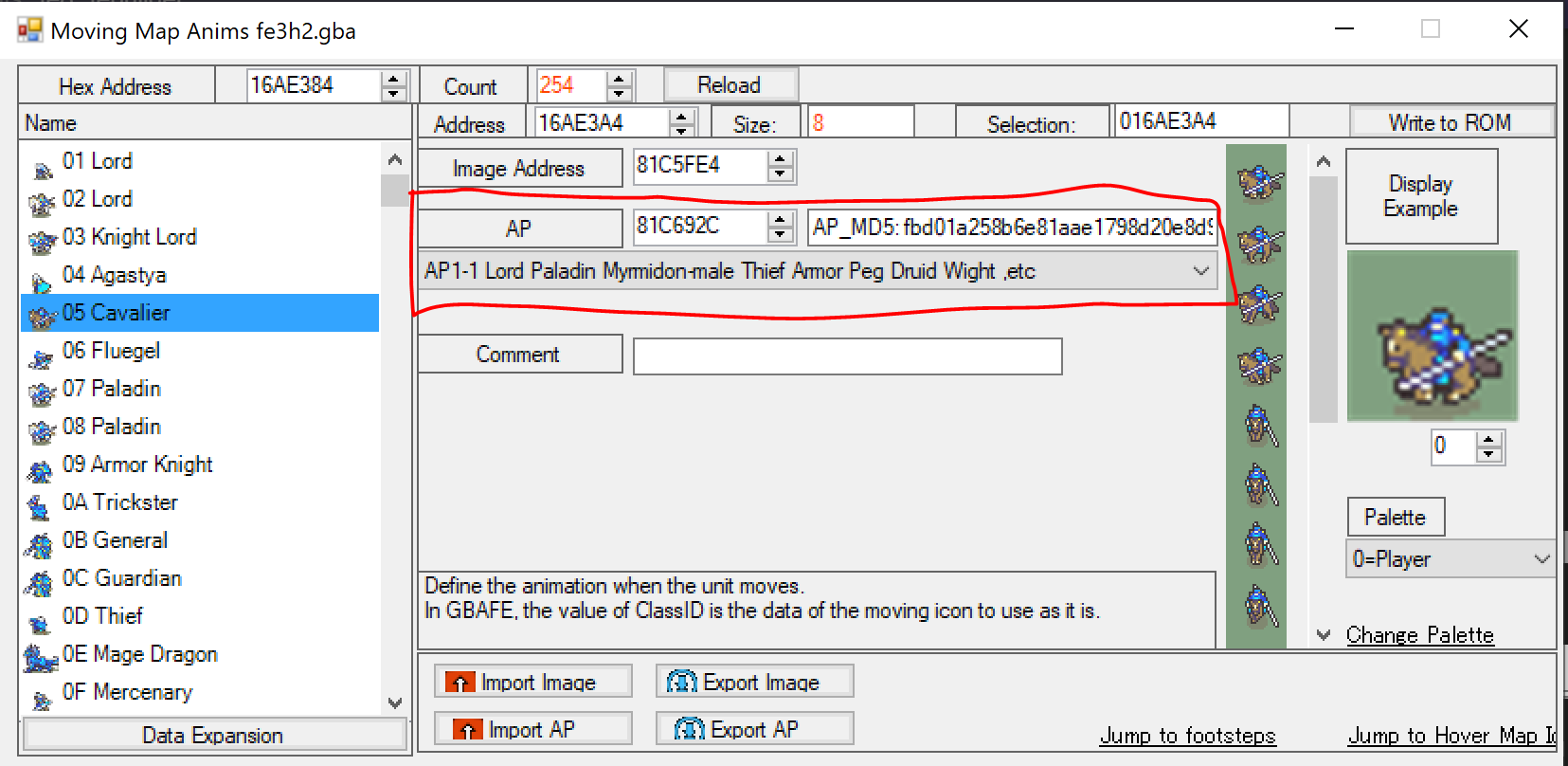
When you import a moving map sprite, you may also need to change the AP, the animation processing data. Most sprites use AP 1-1, but some vanilla sprites, and sprites that are edits of those sprites, use different APs to allow special formatting to break the normal size boundaries (ex. Swordmaster reaching its sword up in the hover anim). If a sprite looks weird in-game, you may have the wrong AP – look in the dropdown for one that matches the class the sprite is based on.
This class is showing the wrong sprite when moving, when hovering over it, and in the stat screen.
Unlike standing sprites, moving sprites are not assigned by ID, and in fact, jumping to the moving sprites editor may have taken you to the wrong one! Classes use the moving sprite that has the same position in the moving sprites list as the class has in the classes list. If the standing sprite you’re using is shared by multiple classes, jumping to the moving sprites editor from it will just have taken you to the first class that uses that standing sprite, not necessarily the one you came from.