How do I change a character’s portrait? How do I import custom portraits?
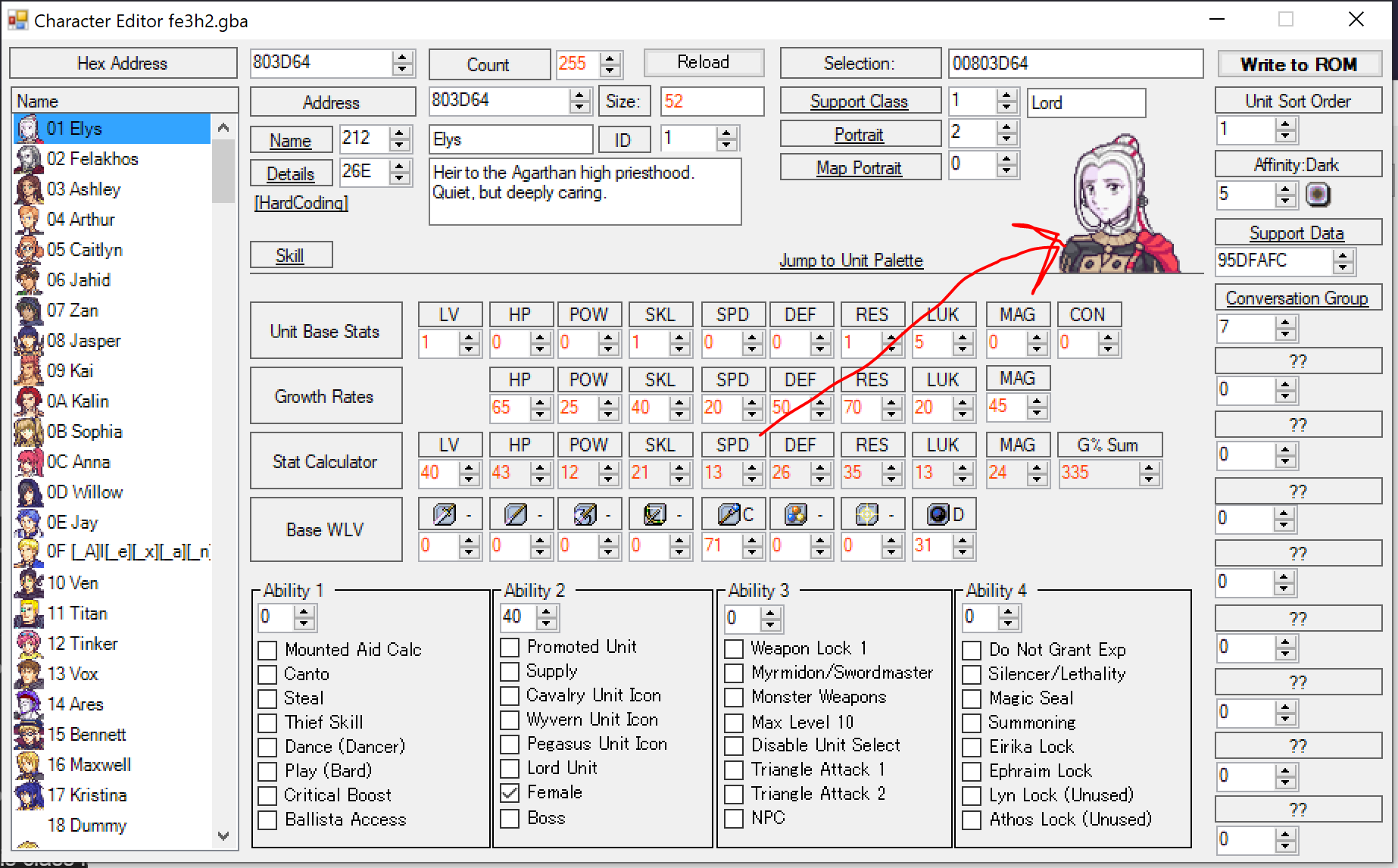
In the Character Editor, click on the character’s portrait to open the portrait editor:
You can import a new portrait here by clicking the import button at the bottom. Make sure to adjust the eye and mouth positions appropriately after import.
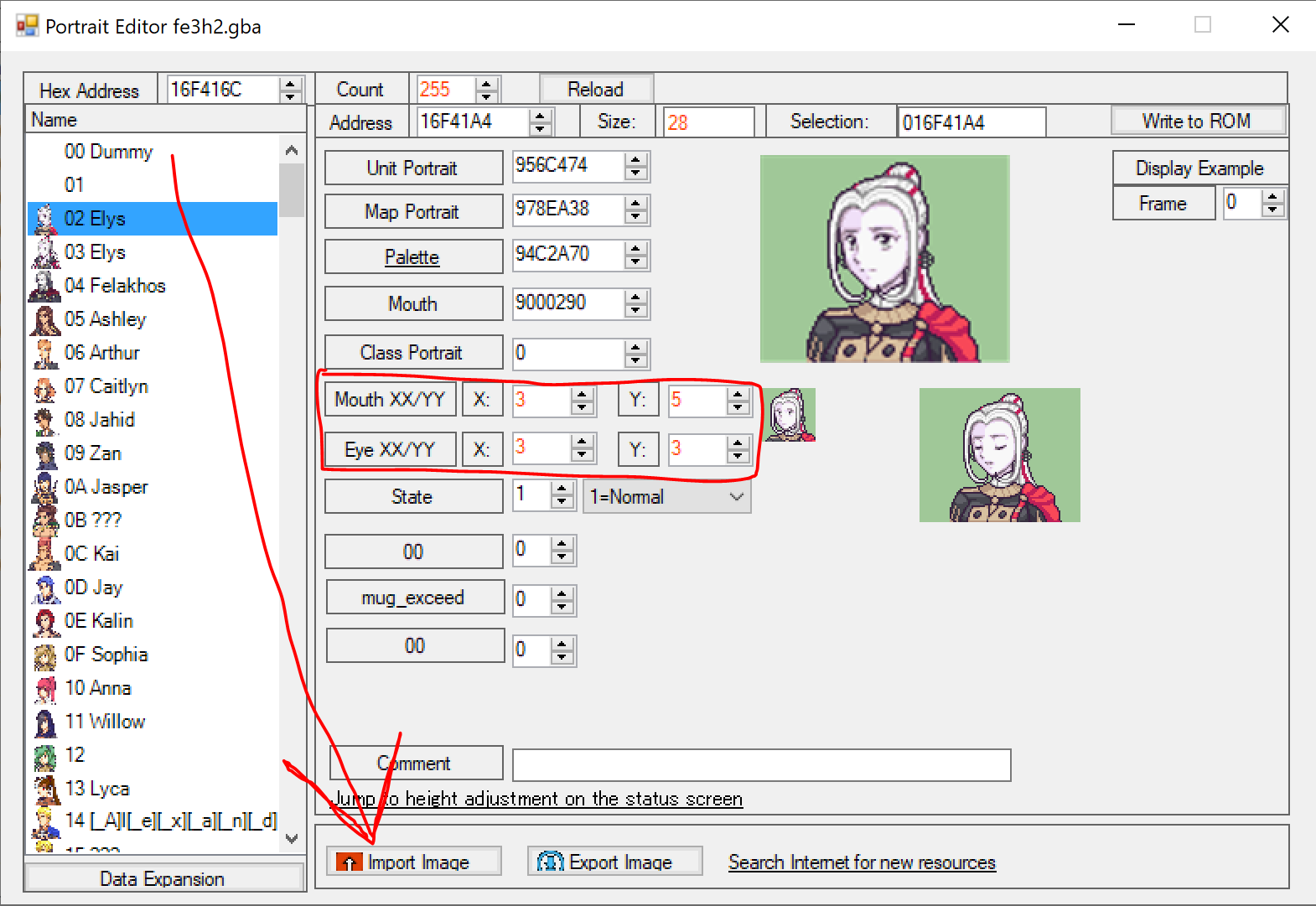
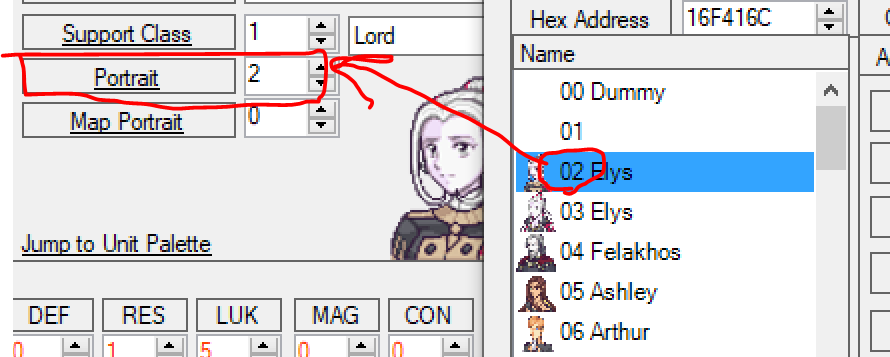
To select a different portrait in the list to use, you can double-click on an entry in the portraits list after opening the portrait editor from that character’s character editor, or you can set the ID of the portrait to use in the Character Editor (the ID is the position in the portraits list).
How do I set a character’s personal battle animation color palette?
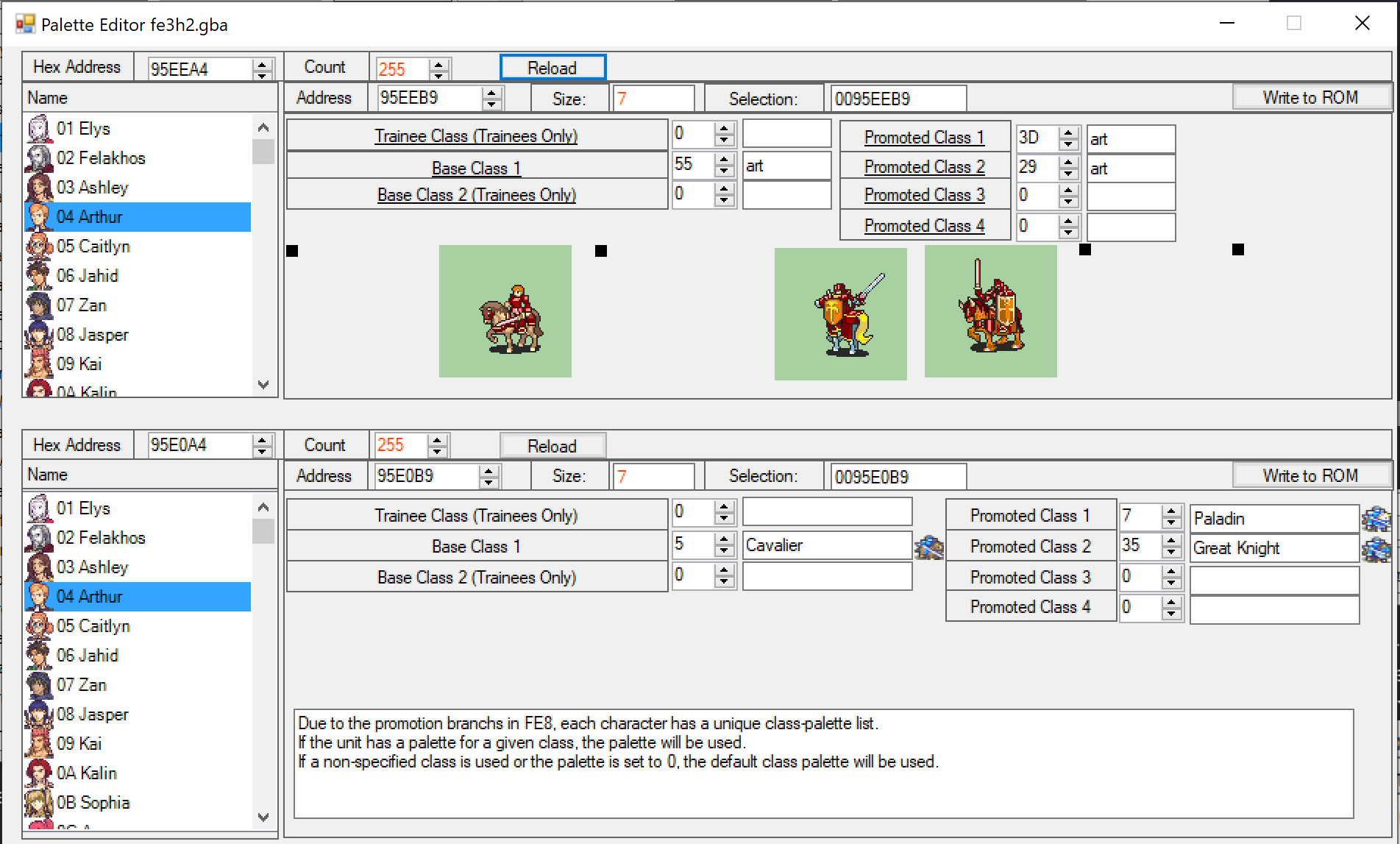
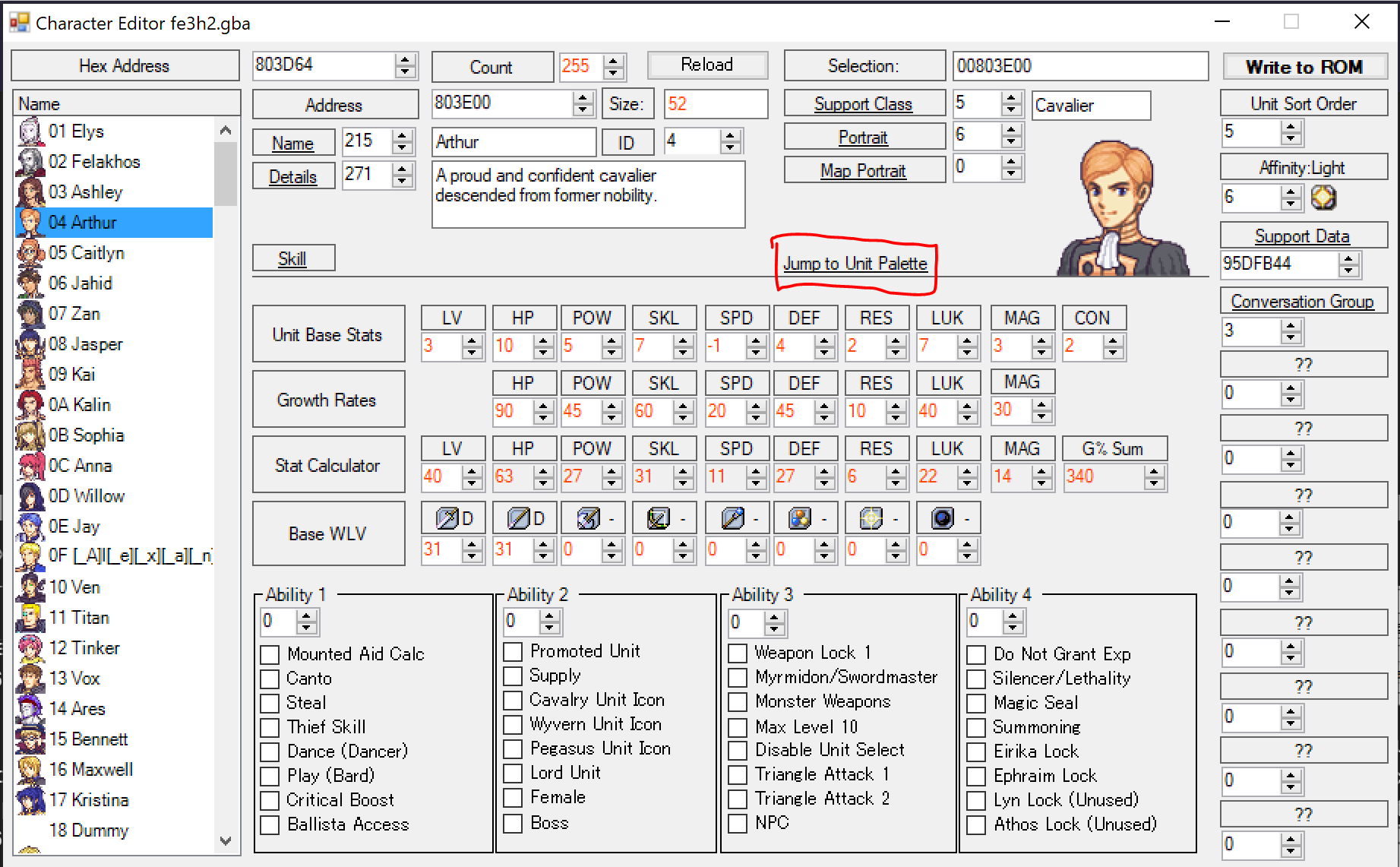
In the Character Editor, click “Jump to Unit Palette” to open the unit palette assignment editor.
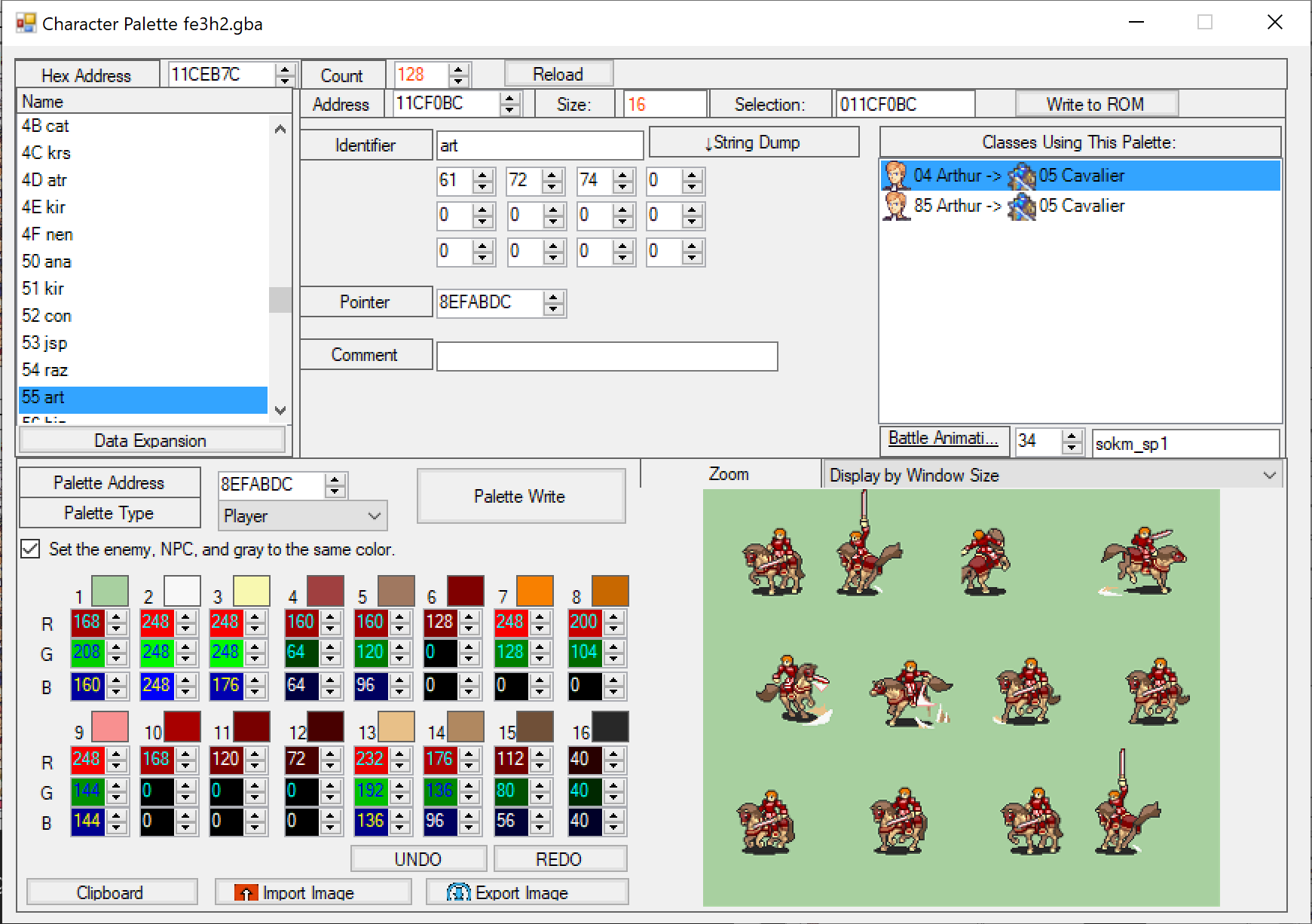
On the bottom half of the screen, you put the IDs of the classes to use. In the corresponding slots on the top half of the screen, you put the IDs of the palettes to use. Click the label next to any of the top half’s palette slots to be taken to the actual palette editor, where you can edit the colors of the palette and expand space for new palettes.