Winlator 10.0 Beta ships with Added native GLIBC for better I/O performance. This is really big for running LT (and other games on Android). I’m getting 20-second load times on LTPhone (down from around 5 minutes since Winlator 8.0) and an almost stable 60 fps on the same test device. Go update your Winlator and check it out.
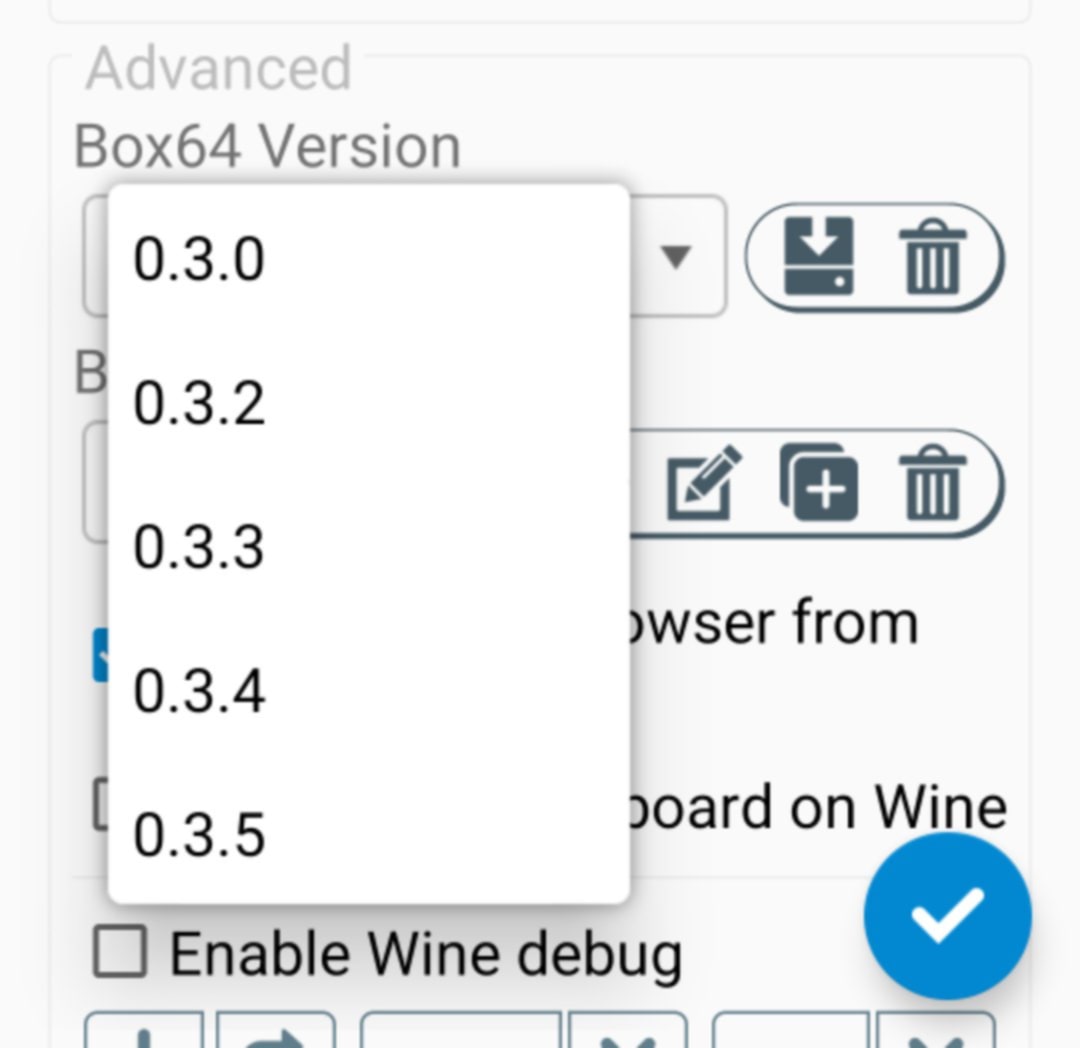
Getting down to brass tacks: Winlator 9.0 ships with Box64 v.0.3.2 out of the box. What we need to emulate LT is v0.3.0. Upon updating to 9.0, you’ll need to go to Settings -> Box64, then set the version to v0.3.0, and press the save button at the bottom-right. If v0.3.0 isn’t there, you have to install it by pressing the download button (just to the right). This is a setting you need to tweak if you’re seeing smeared lines on in-game text.
This caveat from the last Winlator update still applies and will likely apply going forward.
Winlator 10.0 Beta 2 has been released. However, Bruno (the dev) doesn’t ship Beta 2 with Box64 0.3.0 (runtime that’s LT-compatible). Me and a couple of guys have talked to him about this issue (including a guy from China who’s playing LT & FEXNA via Winlator lol). So it’ll probably be addressed in Beta 3.
For now, what we can do is install Box64 0.3.0 manually after updating to Beta 2:
Download a copy of Box64 0.3.0 from my personal archive or, if you don’t trust me, get your own copy by extracting it from a Winlator 9.0 apk. Once you have a copy, move it to your LT container’s existing drives.
In the Winlator app, edit your LT container settings by going to your list of containers, tapping the : dropdown, and selecting Edit.
Go to the Drives tab and press Add. A new drive will spawn with a blank path.
Paste data/data/com.winlator/ into the path.
Press the check button.
Tap the : dropdown again and select File Manager.
Navigate to where you stored your copy of Box64 0.3.0. Press the : dropdown next to the file.
Select Copy and navigate to the new drive you just made.
Inside, go to files/installed_components/box64 and paste the file there. If the box64 folder doesn’t exist, feel free to create it by pressing the button next to the Home icon at the upper right corner of your screen.
Now go back to Winlator’s home screen, press the navigation button at the upper left corner, then select Settings.
Go down to Box64 Version and select 0.3.0. Press the check button.
You’re done! To be sure, go back to settings and check if the Box64 version has been set correctly (there’s a bug where sometimes you have to set it twice so it takes effect).
I’ve tried doing this because I immediately noticed smeared text in The Unbroken Thread. However, when I set Box64 to 0.3.0, the container won’t start up. It starts up on the other two versions. I followed all the instructions so I am not sure what the issue there could be.
Also, the game crashes when dialogue is about to appear (I think) so it probably doesn’t work on 0.3.4
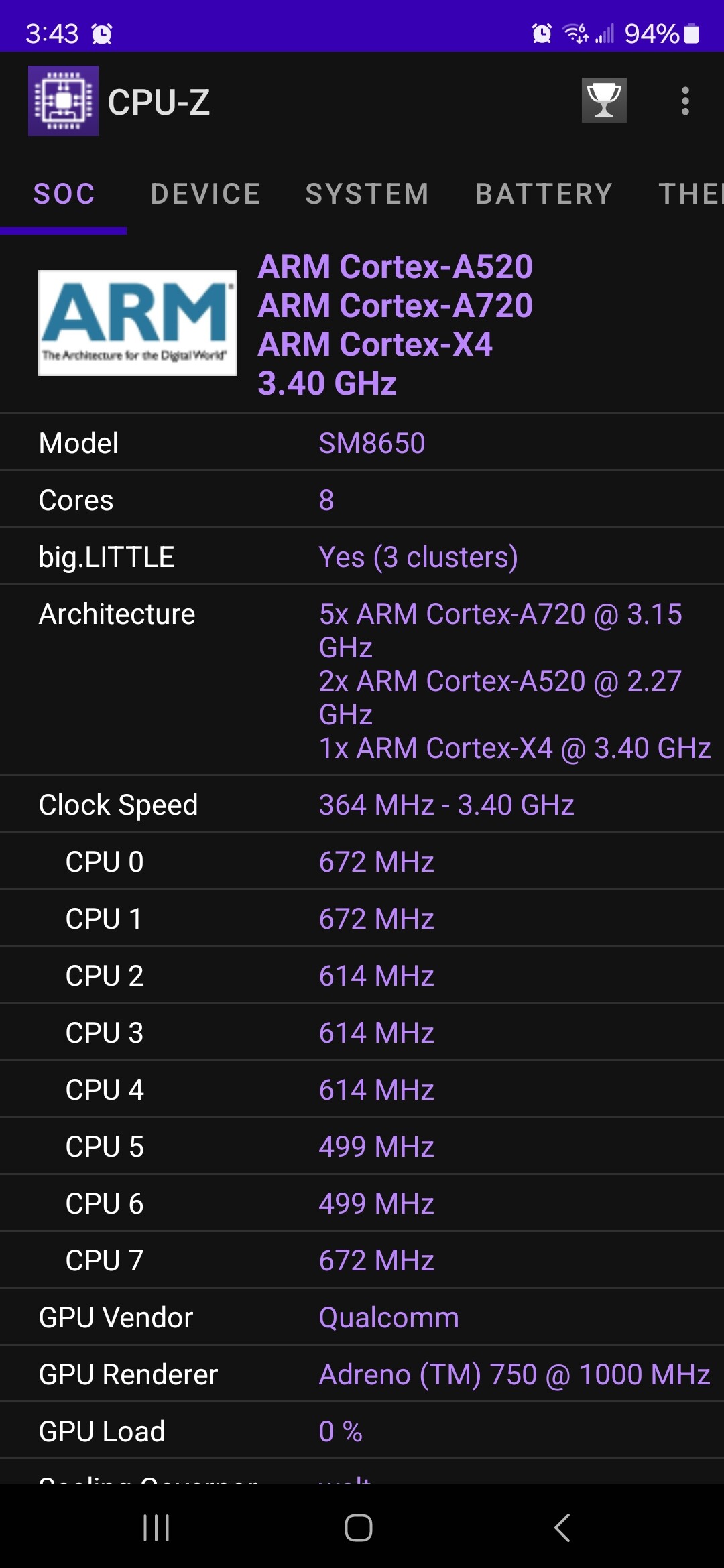
There’s your answer. This is still bleeding edge tech and it’s in Android-land, so your device might be part of the subset that works on those other two instead of what’s in the instructions. Can you install CPU-Z and post screens of what’s under the SOC tab just for posterity?
You can also enable logging in the settings so you can get some inkling of what’s causing that crash, if you’re curious.
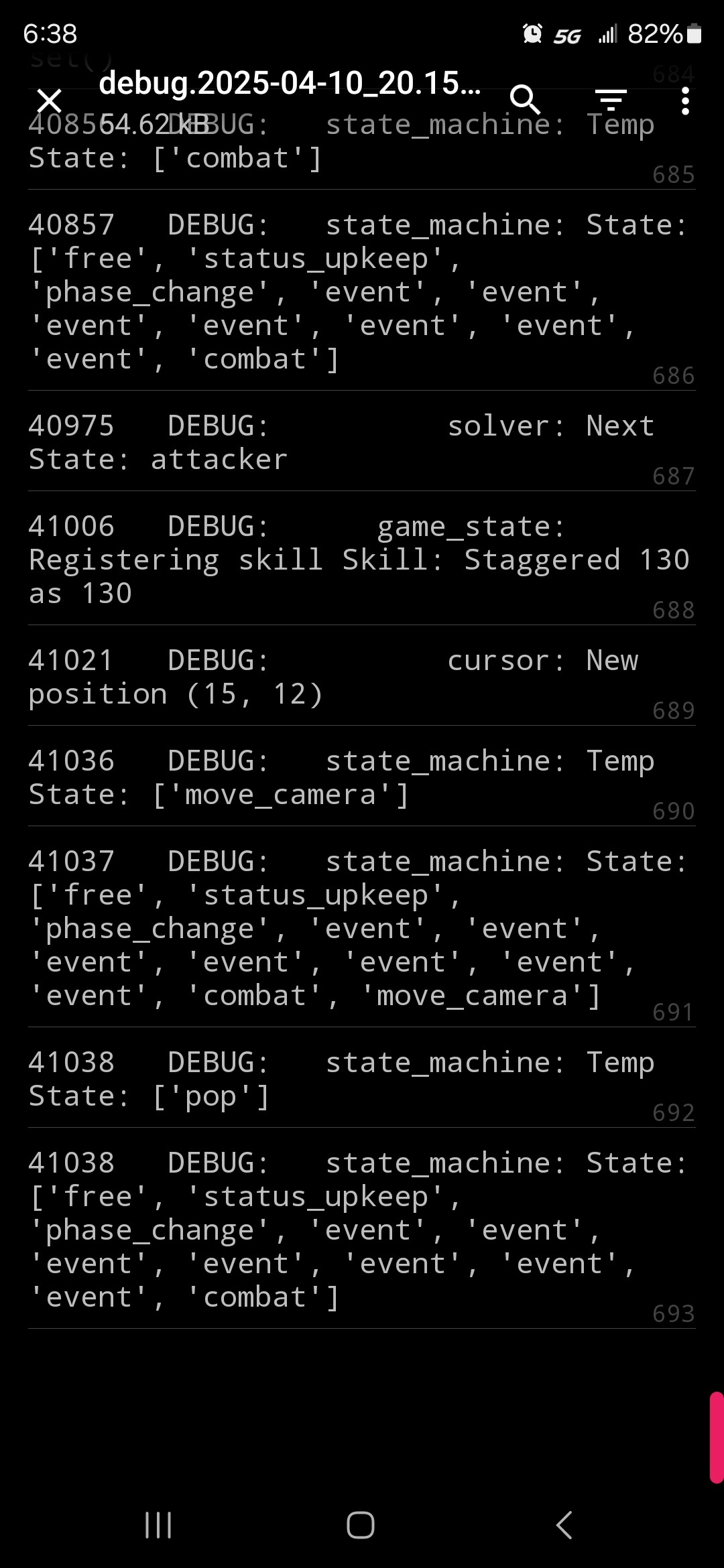
I’m not sure what part of the log indicates where it crashed. It seems like it worked and then just stopped. These are the last lines in it, does this indicate anything?
I see. My hunch says that you’re using the wrong combination of Box64 and container settings for your device. Try tweaking those like a madman lol. Sorry I can’t help you more (don’t have your device on hand, sadly). Afaik, you’re on Adreno though so Turnip should work… Maybe you can get more help here: r/winlator.
I just realized something else. I never saw any settings called GPU Name, Offscreen Rendering Mode, Video Memory Size… In fact Wine Configuration seems to be missing settings. Did I get the wrong version of the app? I downloaded it through Github.
If it’s from the link in the post, then you’re on the right Winlator. Bruno just removed those settings since they weren’t important and just added fluff.
There are plenty of guides in the internet on how to bypass Android blocking installation of apps. This is Android, not Apple, so sideloading is practically expected.
I recently moved to Winlator Frost because (for me) it offers better performance across the board (EotF now loads in around 20s, from around 7 minutes half a year ago!).
Frost also comes pre-installed with five versions of Box64 for our convenience. For most people, it eliminates the need to do the steps in this addendum.
Anyway, Frost has fixed the smeared text issue, so this addendum is near-deprecated. I’m now using version 0.3.5 of Box64 and reaping the speed benefits.
If you move to Frost, remember to take out your saves through Winlator’s file manager. Transfer them somewhere on your phone for safekeeping, then move them back in (alongside your game) after uninstalling Winlator and installing Frost. Have fun!
Fun Trivia: You can edit the saves/config.ini file in a game’s directory and set screen_size=2 if the prescribed 480 x 320 resolution works for you. This eliminates the need to center the game on your screen, enabling you to just launch its executable from Winlator’s file manager. I believe this has to be done before the game is first launched in Winlator, though. Use an Android text editor from the playstore to do your edits and you’re golden.