Alice's Code stuff

Recently I’ve learned to use AI to code new stuff into Fire Emblem 8. I’ll be posting the stuff I make in this thread.

Everything I post here is tested to the best of my abilities.

Standalone Hacks:

View Contents

Skills:

View Contents

Please let me know of any bugs/issues you come across.

4 Likes

World Map MMB

Formerly “World Map Minimug Box Palette Fix”

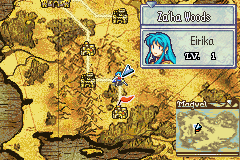
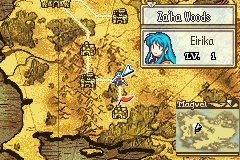
In Vanilla FE8, the Minimug Box during Chapters uses a different palette than the rest of the UI.
Main UI palette (Blue): 5B6BB4
Minimug Box palette (Blue): A1738C

But for some reason, the World Map version of the Minimug Box uses the Main UI palette. But also, the game seems to be hardcoded to rewrite the Vanilla palette to a different address each time you try to overwrite it. Even if you use Hex Editing. This can be cumbersome if you want to make a Custom UI.

This patch makes the World Map Minimug Box use the same palette as the Minimug Box during chapters.

Before VS After:

In the Installer, you can define all 4 palettes. The default values are the same as the in-chapter MMB palettes. But you can redefine them as you wish.

#define WorldMapMMB_Blue  (0x08A1738C)
#define WorldMapMMB_Red   (0x08A173AC)
#define WorldMapMMB_Green (0x08A173CC) // Unused? In Vanilla, there are no Green Units on the World Map.
//---
#define WorldMapMMB_4th   (0x08A98E8C) // Gray palette used for Location markers.

Thank you to @Zane for the new code template and the 4th palette address.

C code
#include "gbafe.h"

extern u16 WorldMapMMB_Blue[];
extern u16 WorldMapMMB_Red[];
extern u16 WorldMapMMB_Green[];
extern u16 WorldMapMMB_4th[];

// Helper: apply the correct unit MMB palette based on faction
static void ApplyUnitMapUiFramePal(int faction, int palId)
{
    const u16* pal;

    switch (faction)
    {
        case FACTION_BLUE:
            pal = WorldMapMMB_Blue;
            break;

        case FACTION_RED:
            pal = WorldMapMMB_Red;
            break;

        case FACTION_GREEN:
            pal = WorldMapMMB_Green;
            break;

        default:
            pal = WorldMapMMB_4th; // safety fallback
            break;
    }

    ApplyPalette(pal, palId);
}

// Replacement for the vanilla world map MMB palette function
// IMPORTANT: This must be named sub_80BE5B4 so lyn overwrites the real function.
void sub_80BE5B4(int faction, int palId)
{
    switch (faction)
    {
        case FACTION_BLUE:
        case FACTION_RED:
        case FACTION_GREEN:
            ApplyUnitMapUiFramePal(faction, palId);
            break;

        default:
            // 4th palette: location signs / non‑unit markers
            ApplyPalette(WorldMapMMB_4th, palId);
            break;
    }
}

DOWNLOAD

Old code:
DOWNLOAD (Deprecated)

1 Like

Skill: Tome Harmony

Tome Harmony: Allies within 2 tiles equipped with Magic gain +2 Damage.

This skill differs from similar skills, like Drive Magic, in that, instead of looking for the Weapon Ability “Attacks Res”, it rather looks for the Weapon Type [Staff, Anima, Light, Dark].

This implementation allows you to have Physical Tomes that still get boosted. And also avoid boosting Magical Dragonstones or Monster Weapons.

ASM

Assemble to a .dmp file

.thumb

@ Tome Harmony: Allies within 2 tiles equipped with Staff/Anima/Light/Dark
@ deal +2 damage in combat.

@ r0 = attacker
@ r1 = defender

.equ AuraSkillCheck, TomeHarmonyData+0
.equ ItemTable,     TomeHarmonyData+4
.equ TomeHarmonyID, TomeHarmonyData+8

.global TomeHarmony
.type TomeHarmony, %function

TomeHarmony:
    push {r4-r7, lr}
    mov  r4, r0        @ attacker
    mov  r5, r1        @ defender

    @ --- Check equipped weapon type: Staff (4), Anima (5), Light (6), Dark (7) ---
    mov  r0, #0x1E
    ldrb r0, [r4, r0]      @ item ID
    cmp  r0, #0
    beq  Done              @ no weapon equipped

    ldr  r1, ItemTable
    mov  r2, #36
    mul  r2, r0
    add  r1, r2
    ldrb r1, [r1, #0x7]    @ weapon type byte

    cmp  r1, #4
    blt  Done
    cmp  r1, #7
    bgt  Done

    @ --- Call AuraSkillCheck ---
    ldr  r0, AuraSkillCheck
    mov  lr, r0
    mov  r0, r4            @ unit to center aura on (attacker)
    ldr  r1, TomeHarmonyID @ skill ID
    mov  r2, #0            @ allegiance: same team
    mov  r3, #2            @ max range = 2 tiles
    .short 0xF800          @ AuraSkillCheck

    cmp  r0, #0
    beq  Done

    @ --- Apply +2 damage ---
    mov  r0, r4
    add  r0, #0x5A
    ldrh r3, [r0]
    add  r3, #2
    strh r3, [r0]

Done:
    pop  {r4-r7}
    pop  {r0}
    bx   r0

.align
.ltorg

TomeHarmonyData:
@ POIN AuraSkillCheck
@ POIN ItemTable
@ WORD TomeHarmonyID

The block that looks for Weapon type is:

    cmp  r1, #4
    blt  Done
    cmp  r1, #7
    bgt  Done

This reads as

If weapon type is Equal or Between 4 and 7

Staff = 4
Anima = 5
Light = 6
Dark = 7

So, for example, you can prevent Staves from getting the boost by changing the 4 to a 5.


Remember to add this to AuraSkill.event:

ALIGN 4
TomeHarmony:
#incbin "TomeHarmony/TomeHarmony.dmp"
POIN AuraSkillCheck
POIN ItemTable
WORD TomeHarmonyID

And also add an entry for TomeHarmony in PreBattleCalcLoop.event.

And don’t forget to add the skill to skill_definitions.event and skill_icons.event.
1 Like

This is nonsense.


The original function here looks like (taken from the decomp)

void sub_80BE5B4(int faction, int palId)
{
  u16 * src;
  switch (faction)
  {
    case FACTION_BLUE:
      src = gUnknown_08A98E2C;
      break;

    case FACTION_RED:
      src = gUnknown_08A98E4C;
      break;

    case FACTION_GREEN:
      src = gUnknown_08A98E6C;
      break;

    default:
      src = gUnknown_08A98E8C;
      break;
  }

  ApplyPalette(src, palId);
  return;
}

As you can see, this handles green units and a mysterious fourth option, which your code doesn’t consider. This fourth option, the default, is used for locations.

If I were to do something like this, it’d probably look like this:

C source:


#include "gbafe.h"


void ApplyUnitMapUiFramePal(int faction, int palId);
extern u16 gPalWorldMapGrayUi[];


// please please please rename this to something like `ApplyUnitWorldMapUiFramePal`
// or anything that makes sense.
void sub_80BE5B4(int faction, int palId)
{
  switch (faction)
  {
    case FACTION_BLUE:
    case FACTION_RED:
    case FACTION_GREEN:
      ApplyUnitMapUiFramePal(faction, palId);
      break;

    default:
      ApplyPalette(gPalWorldMapGrayUi, palId);
      break;
  }
}

EA installer:


// A user could then instead replace this default with something like:
// gPalWorldMapGrayUi:
// #incbin "YourPalette.bin"
#define gPalWorldMapGrayUi (0x08A98E8C)

#include "WhateverYouNameTheThing.lyn.event"

Some things to consider about this solution:

It keeps the non-unit functionality from the original code. Your code will turn locations red. This, by default, will use the normal non-unit world map palette, but is able to be changed by the user to be a different palette if they wish. Also, the user does not have to recompile the code in order to change the palette, but rather just edit the EA installer

It defers the responsibility of knowing the player interface palettes to the function that normally provides them. This means that users who edit that function will have the right palette shown here, rather than having to edit your code to change your baked-in palette addresses.

5 Likes

I see. Thank you for the revised solution! I’m new to this, so I wasn’t completely sure how to approach this.

I will make an edit to the code soon.

Skill Definitions Organizer

If you swap around skills frequently, this might be useful for you:

Save this as `generate_ids.ps1` (Windows PowerShell code)
param(
    [string]$InputFile
)

if (-not $InputFile) {
    Write-Host "No input file provided."
    exit
}

Write-Host "Using input file: $InputFile"
Write-Host ""

# Read all #define lines except Alias lines
$defineLines =
    Get-Content $InputFile |
    Where-Object { $_ -match '^\s*#define' -and $_ -notmatch 'Alias' }

# Parse into objects: SkillName + ID + original line
$parsed =
    $defineLines |
    ForEach-Object {
        $parts = $_ -split '\s+'
        $skill = $parts[1]
        $last  = $parts[-1]

        if ($last -match '^\d+$') {
            $id = [int]$last
            if ($id -ge 1 -and $id -le 254) {
                [PSCustomObject]@{
                    Skill = $skill
                    ID    = $id
                    Line  = $_
                }
            }
        }
    }

# 1. Write used_ids.txt sorted by numeric ID
$parsed |
    Sort-Object ID |
    Select-Object -ExpandProperty Line |
    Set-Content used_ids.txt

Write-Host "Used IDs written to used_ids.txt (sorted by ID)"

# 2. Compute unused IDs
$usedIds = $parsed.ID | Sort-Object -Unique
$all = 1..254
$unused = $all | Where-Object { $usedIds -notcontains $_ }
$unused | Set-Content unused_ids.txt

Write-Host "Unused IDs written to unused_ids.txt"

# 3. Detect duplicates
$dupes =
    $parsed |
    Group-Object ID |
    Where-Object { $_.Count -gt 1 }

if ($dupes.Count -gt 0) {
    $output = @()

    foreach ($group in $dupes | Sort-Object Name) {
        $id = $group.Name
        $skills = $group.Group.Skill -join ", "

        $output += $id
        $output += $skills
        $output += ""   # blank line
    }

    $output | Set-Content dupe_ids.txt
    Write-Host "Duplicate IDs found. dupe_ids.txt created."
}
else {
    Write-Host "No duplicate IDs found."
}

Write-Host ""
Write-Host "Done."

Save this as `generate_ids.bat` (Batch file)
@echo off
setlocal

if "%~1"=="" (
    echo Drag a .txt or .event file onto this .bat file.
    pause
    exit /b
)

powershell -ExecutionPolicy Bypass -File "%~dp0generate_ids.ps1" -InputFile "%~1"

pause

Make sure both files are in the same folder. Then, drag and drop your skill_definitions.event into the .bat file (file name can be anything. Just make sure it’s saved as a .event or .txt file).

This will generate 3 new files:

  • used_ids.txt, which contains all the used skill IDs with the same EA syntax, and in numeric order
  • unused_ids.txt, which contains all the skill IDs that are unused, with no EA syntax. Just a raw number list, also in numeric order.
  • dupe_ids.txt, which will ONLY be generated IF you have duplicate IDs. And list them with the numeric ID as a header, followed by all the skills using that ID. Followed by the next duplicate ID (if ther eis one). The CMD window will tell you if it found no duplicate IDs.

This is useful for debugging, and making sure you’re using all your skill IDs.

When reading you Skill Definitions file, it will ignore Alias lines.

1 Like