Before asking, make sure to search! Press the  in the upper right to search.
Lex Talionis
- Base Game: Fire Emblem: The Sacred Stones
I've tried loading the hack from the initial startup screen and by the Open Project option in the site. Don't know what else to do.
- Steps to reproduce: Make hack, create data for over 100 characters and weapons over 50 skills and a full support map, leave for 2 months, come back and try to open hack (?)
I’ve been away from hacking for a while because I was making portraits with the Fire Emblem Character Creator, but when I returned to upload the files, my hack simply wouldn’t load. Whenever I click on the project, I get an error list saying Exception List Index Out of Range and am taken to the default screen when starting a new hack. I have also tried loading the hack after getting into the site proper, but this just causes the site to crash and close. I am extremely nervous because I have spent literal months making data for over a hundred characters (including boss phases and altered stats for when certain characters return), countless weapons including 3 “new” types, over 50 skills I still haven’t fully coded yet, and support data across 54 playable characters. I unfortunately don’t have the exact numbers anymore since I no longer have access, but the point is that I took a long time creating this data and it may be gone before I can even transcript it all into a single chapter. I earnestly don’t know where to go from here and I’m panicking and a bit heartbroken because if this truly is unsalvageable then it will take months to get back to where I was. Is there any way to resolve this Exception List Out of Reach issue and get back on track? Can this even be salvaged at all?
PS. Forgive me if this is better suited for tutorials.
To be clear this is for a fangame made in Lex Talionis and not any kind of hack?
Make a backup of your project first (it is a folder named YOUR_PROJECT.lrproj, make a copy of it)
LT-maker has its own discord server, it’s easier to ask for help there. Though if you dislike using discord, I can try helping you:
1, Are you using default version of LT-maker (the one with double_click_to_run.bat) or git version?
2, Can you copy paste the error message here?
You are right about the engine, though I myself am not very clear on the distinction since it still uses the Sacred Stones as a base.
I am using the default version. The error message is as follows: Failed to load project at C:/Users/Owner/Downloads/LT_Editor (1)/lt_editor/Bleach Emblem.ltproj with exception list index out of range
While LT includes the first few chapters of Sacred Stones as a test project, and behaves similar to GBAFE it is not “using Sacred Stones as a base.”
Hacking is editing an existing game to be different.
LT is a fan game creator based on Python that makes games from scratch.
It might not seem like a big deal, but the terminology used incorrectly can cause misunderstandings.
In your folder that contain the double_click_to_run.bat, open the Terminal.
Type in the terminal: .\double_click_to_run.bat
Then can you copy paste or screenshot everything that comes after here.
I can’t help but feel like I may have skipped a step. When I tried opening Terminal and typed in the thing you said, this happened:
PS C:\Users\Owner> ./double_click_to_run.bat
./double_click_to_run.bat : The term ‘./double_click_to_run.bat’ is not recognized as the name of a cmdlet, function,
script file, or operable program. Check the spelling of the name, or if a path was included, verify that the path is
correct and try again.
At line:1 char:1
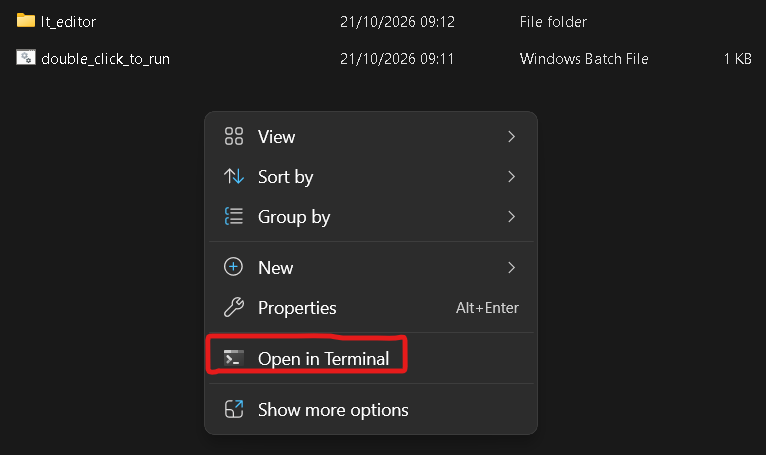
You might need to open the Terminal in the folder that has the double_click_to_run.bat file. Open Terminal else where might not work.
You can either go inside the folder (in File Explorer), right click, Choose Open in Terminal. The terminal should now have PS C:\Users\Owner\PATH\TO\YOUR\LT_MAKER\FOLDER> . Then run the command .\double_click_to_run.bat
Or you can open the terminal as per usual (it shows PS C:\Users\Owner> instead). Then run cd PATH\TO\YOUR\LT_MAKER\FOLDER. Then run the command .\double_click_to_run.bat
Then copy all that comes after the command here.
Note that the PATH\TO\YOUR\LT_MAKER\FOLDER is just an example, replace it with your actual path to folder.
I did as you said, though it just took me back to where I was before. Starting to think the problem lie with the project itself. May try again tomorrow since it’s getting late but I’m starting to get discouraged. This is what came after, though I should warn you that it is extremely long:
C:\Users\Owner\Downloads\LT_Editor\lt_editor>for / %d in (.) do (set test=%d )
C:\Users\Owner\Downloads\LT_Editor\lt_editor>(set test=lt_editor )
C:\Users\Owner\Downloads\LT_Editor\lt_editor>set name=lt_editor
C:\Users\Owner\Downloads\LT_Editor\lt_editor>cd ./lt_editor
C:\Users\Owner\Downloads\LT_Editor\lt_editor\lt_editor>.\lt_editor.exe
Could not parse application stylesheet
pygame-ce 2.3.2 (SDL 2.26.5, Python 3.11.8)
debug: 0
libpng warning: iCCP: known incorrect sRGB profile
libpng warning: iCCP: known incorrect sRGB profile
libpng warning: iCCP: known incorrect sRGB profile
libpng warning: iCCP: known incorrect sRGB profile
libpng warning: iCCP: known incorrect sRGB profile
libpng warning: iCCP: known incorrect sRGB profile
libpng warning: iCCP: known incorrect sRGB profile
libpng warning: iCCP: known incorrect sRGB profile
Importing Item Components in advanced_components.py…
Importing Item Components in aesthetic_components.py…
Importing Item Components in ai_components.py…
Importing Item Components in aoe_components.py…
Importing Item Components in base_components.py…
Importing Item Components in class_change_components.py…
Importing Item Components in deprecated_components.py…
Importing Item Components in exp_components.py…
Importing Item Components in extra_components.py…
Importing Item Components in formula_components.py…
Importing Item Components in hit_components.py…
Importing Item Components in special_components.py…
Importing Item Components in target_components.py…
Importing Item Components in usable_components.py…
Importing Item Components in utility_components.py…
Importing Item Components in weapon_components.py…
Create Level Dock
Create Overworld Dock
6689 ERROR:project_file_backend: list index out of range
Traceback (most recent call last):
File “app\editor\file_manager\project_file_backend.py”, line 304, in auto_open
self.load()
File “app\editor\file_manager\project_file_backend.py”, line 328, in load
RESOURCES.load(self.current_proj)
File “app\data\resources\resources.py”, line 99, in load
getattr(self, data_type).load(os.path.join(self.main_folder, data_type))
File “app\data\resources\combat_palettes.py”, line 95, in load
save_data = sorted(save_data, key=lambda obj: obj[2])
^^^^^^^^^^^^^^^^^^^^^^^^^^^^^^^^^^^^^^^^^
File “app\data\resources\combat_palettes.py”, line 95, in
save_data = sorted(save_data, key=lambda obj: obj[2])
~~~^^^
IndexError: list index out of range
6689 WARNING:project_file_backend: Failed to load project at C:/Users/Owner/Downloads/LT_Editor (1)/lt_editor/Bleach Emblem.ltproj. Likely that project is corrupted.
It looks like combat_palettes.py is missing data or the data is in the wrong format.
Thanks for the detailed error message, this is exactly what I need.
So sadly what it’s suggesting is that your combat palette is corrupted. Solutions:
-
If you haven’t touched the combat palette at all (did not make any new team palette, or did not import new battle animations) then I think copy default.ltproj/resources/combat_palettes folder to YOUR_PROJECT.ltproj/resources/combat_palettes would fix this.
-
Else, check that in your LT_Editor folder, there should be a folder named autosave_YOUR_PROJECT_CODENAME.ltproj. If it exists, run the lt editor, it should open the default project, then open other project (Ctrl + O or click File > Open Project), select “Open Other…”, then select that autosave_YOUR_PROJECT_CODENAME.ltproj folder. This should runs the backup of your game. If this is sufficient, great, save it as new project.
-
If your autosave_YOUR_PROJECT_CODENAME.ltproj is outdated, best you can do is copy autosave_YOUR_PROJECT_CODENAME.ltproj/resources/combat_palettes folder to YOUR_PROJECT.ltproj/resources/combat_palettes folder. Some combat palette data might still be missing, but at least you can now open your project in LT Editor.
Alright. After several tries of metaphorically headbutting against a wall, I was finally able to open it. The drag and drop method you described might have worked. Thank you. Now I can get to work figuring out how to edit and import all these portraits I’ve made.